

Traduzione con LLM self-hosted
Inserisci un LLM self-hosted (ad esempio: tramite Ollama) come provider di traduzione nella direttiva @strTranslate, per tradurre il valore di un campo in qualsiasi lingua desiderata.
Descrizione
Rendi un LLM self-hosted disponibile come provider di traduzione nella direttiva @strTranslate.
Aggiungi la direttiva @strTranslate a qualsiasi campo di tipo String, per tradurlo nella lingua desiderata.
Ad esempio, questa query traduce i campi title e content dell'articolo dall'inglese al francese utilizzando il tuo LLM self-hosted:
{
posts {
title @strTranslate(
from: "en",
to: "fr",
provider: self_hosted_llm
)
content @strTranslate(
from: "en",
to: "fr",
provider: self_hosted_llm
)
}
}Autorizzazione
Se ospiti il LLM sul tuo server, non avrai bisogno della chiave API.
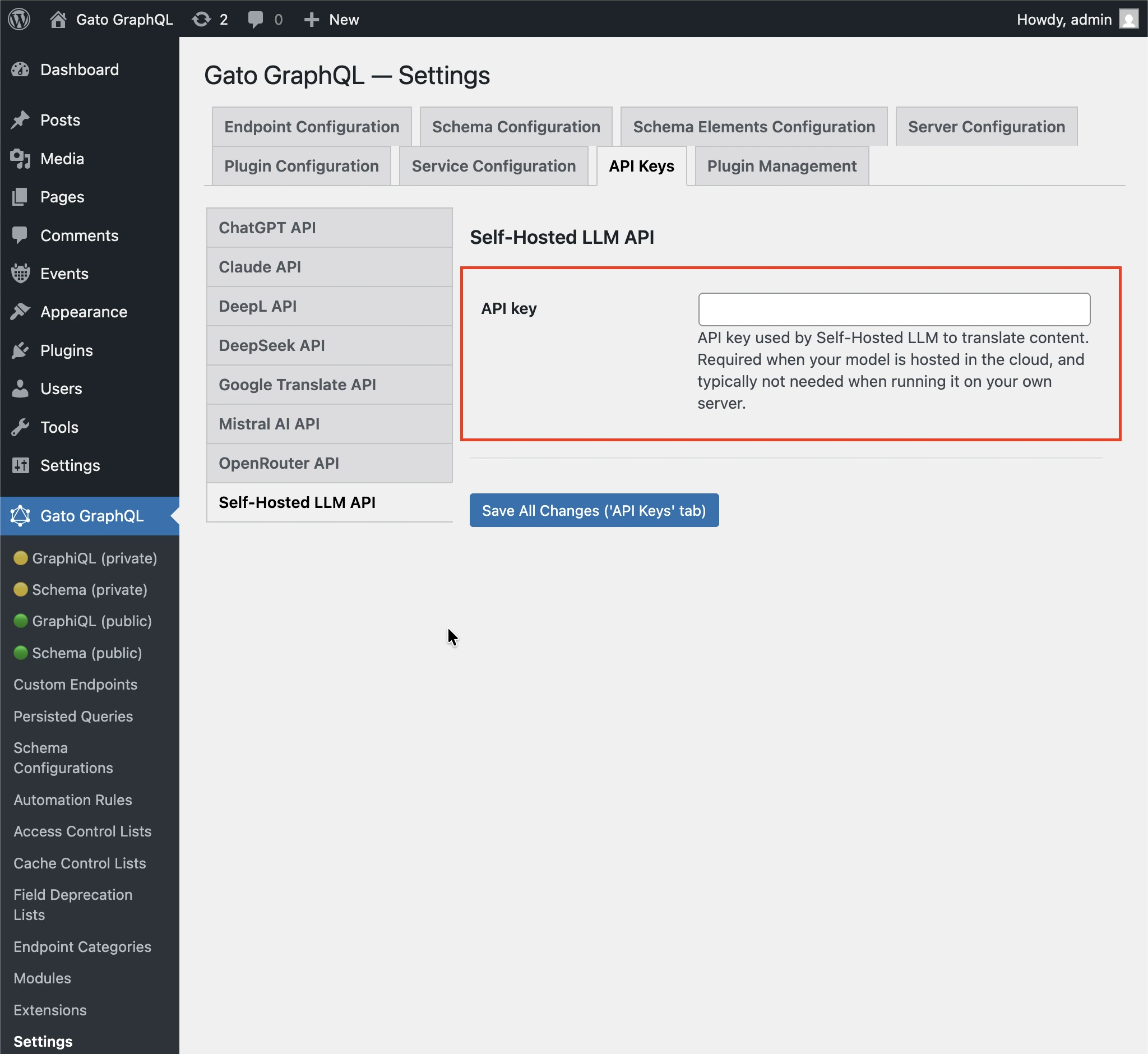
Se utilizzi il tuo LLM self-hosted nel cloud (ad esempio: quando usi Ollama Cloud), potresti dover fornire una chiave API, tramite la scheda Plugin Management > Self-Hosted LLM Translation nella pagina delle Impostazioni.
Quindi segui uno dei metodi seguenti per inserire il valore.
Tramite le Impostazioni
Inserisci la chiave API nei campi corrispondenti nella pagina delle Impostazioni e fai clic su "Save Changes (All)":
In wp-config.php
Aggiungi la costante GATOGRAPHQL_SELF_HOSTED_LLM_TRANSLATION_SERVICES_API_KEY in wp-config.php:
define( 'GATOGRAPHQL_SELF_HOSTED_LLM_TRANSLATION_SERVICES_API_KEY', '{your API key}' );Tramite variabile d'ambiente
Definisci la variabile d'ambiente SELF_HOSTED_LLM_TRANSLATION_SERVICES_API_KEY.
Configurazione del LLM
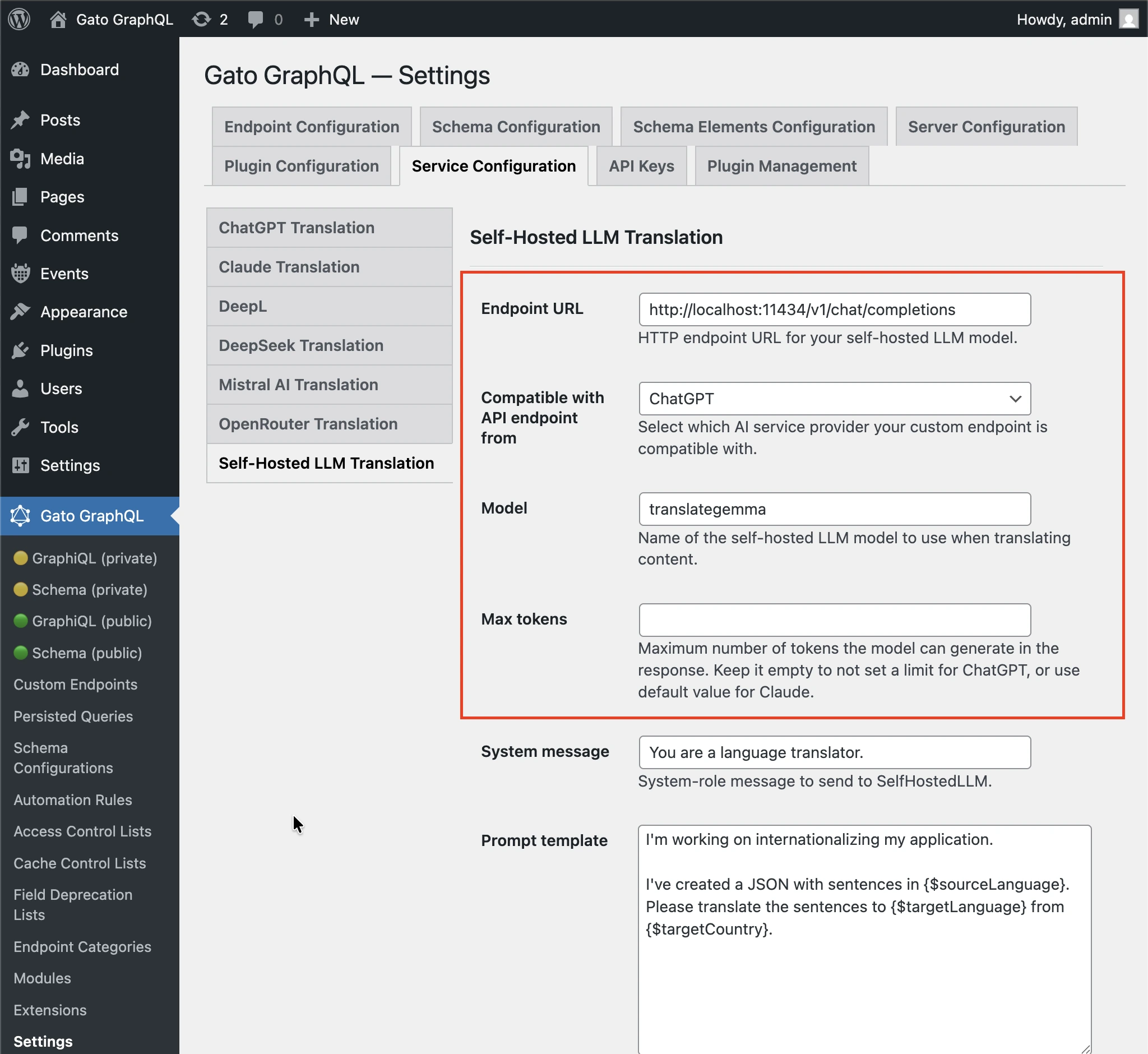
Devi configurare i seguenti valori:
- Endpoint URL: URL dell'endpoint HTTP per il tuo modello LLM self-hosted. Ad esempio:
http://localhost:11434/v1/chat/completionsquando usi il formato ChatGPT e ospiti il modello LLM sul tuo server con Ollamahttp://localhost:11434/v1/messagesquando usi il formato Claude e ospiti il modello LLM sul tuo server con Ollamahttps://ollama.com/v1/chat/completionsquando usi il formato ChatGPT e Ollama Cloudhttps://ollama.com/v1/messagesquando usi il formato Claude e Ollama Cloud
- Compatible with API endpoint from: Con quale provider di servizi IA è compatibile il tuo endpoint personalizzato, con le opzioni ChatGPT e Claude
- Model: Nome del modello LLM self-hosted da utilizzare durante la traduzione dei contenuti.
- Max tokens: Numero massimo di token che il modello può generare nella risposta. Lascia vuoto per non impostare un limite per ChatGPT, oppure usa il valore predefinito per Claude.
Segui uno dei metodi seguenti per inserire i valori.
Tramite le Impostazioni
Inserisci il modello nel campo corrispondente nella pagina delle Impostazioni e fai clic su "Save Changes (All)":
In wp-config.php
Aggiungi le costanti in wp-config.php:
GATOGRAPHQL_SELF_HOSTED_LLM_TRANSLATION_SERVICES_ENDPOINT_URLGATOGRAPHQL_SELF_HOSTED_LLM_TRANSLATION_SERVICES_ENDPOINT_FORMAT_PROVIDERGATOGRAPHQL_SELF_HOSTED_LLM_TRANSLATION_SERVICES_MODELGATOGRAPHQL_SELF_HOSTED_LLM_TRANSLATION_SERVICES_MAX_TOKENS
define( 'GATOGRAPHQL_SELF_HOSTED_LLM_TRANSLATION_SERVICES_ENDPOINT_URL', 'http://localhost:11434/v1/chat/completions' );
define( 'GATOGRAPHQL_SELF_HOSTED_LLM_TRANSLATION_SERVICES_ENDPOINT_FORMAT_PROVIDER', 'chatgpt' );
define( 'GATOGRAPHQL_SELF_HOSTED_LLM_TRANSLATION_SERVICES_MODEL', 'translategemma' );
define( 'GATOGRAPHQL_SELF_HOSTED_LLM_TRANSLATION_SERVICES_MAX_TOKENS', '128000' );Tramite variabile d'ambiente
Definisci le variabili d'ambiente:
SELF_HOSTED_LLM_TRANSLATION_SERVICES_ENDPOINT_URLSELF_HOSTED_LLM_TRANSLATION_SERVICES_ENDPOINT_FORMAT_PROVIDERSELF_HOSTED_LLM_TRANSLATION_SERVICES_MODELSELF_HOSTED_LLM_TRANSLATION_SERVICES_MAX_TOKENS
Prompt di traduzione
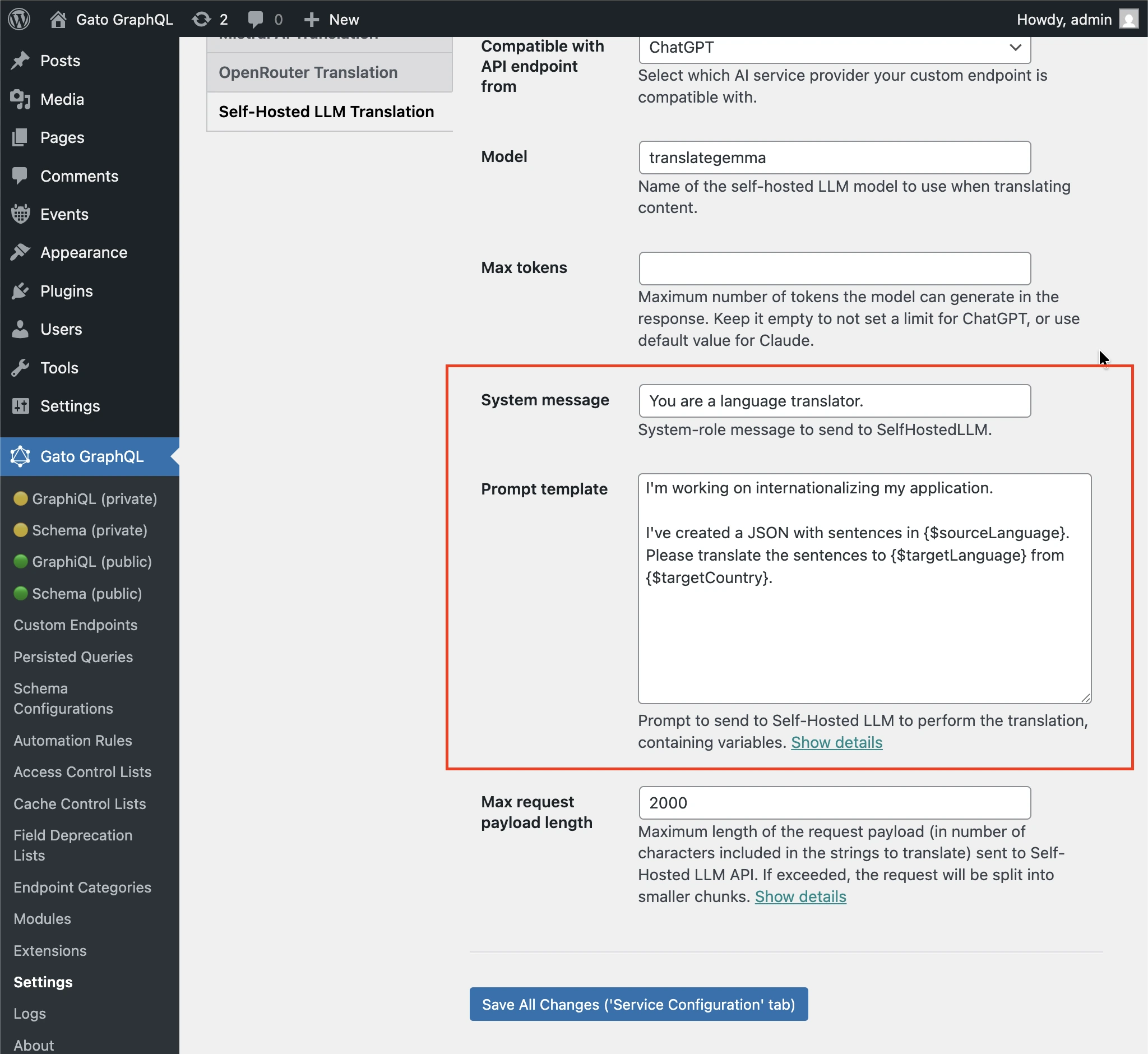
Puoi personalizzare il prompt da passare al LLM self-hosted per eseguire la traduzione.
Segui uno dei metodi seguenti per inserire il valore.
Tramite le Impostazioni
Inserisci il "System message" e il "Prompt template" nei campi corrispondenti nella pagina delle Impostazioni e fai clic su "Save Changes (All)":
In wp-config.php
Aggiungi la costante GATOGRAPHQL_SELF_HOSTED_LLM_TRANSLATION_SERVICES_PROMPT_TEMPLATE in wp-config.php:
define( 'GATOGRAPHQL_SELF_HOSTED_LLM_TRANSLATION_SERVICES_PROMPT_TEMPLATE', 'Please translate strings from {$sourceLang} to {$targetLang}' );Tramite variabile d'ambiente
Definisci la variabile d'ambiente SELF_HOSTED_LLM_TRANSLATION_SERVICES_PROMPT_TEMPLATE.